FAQ
• Enter the TimeTracker URL in the browser - http://timetracker.rsinfocon.com/ and you will see the home page of the TimeTracker.
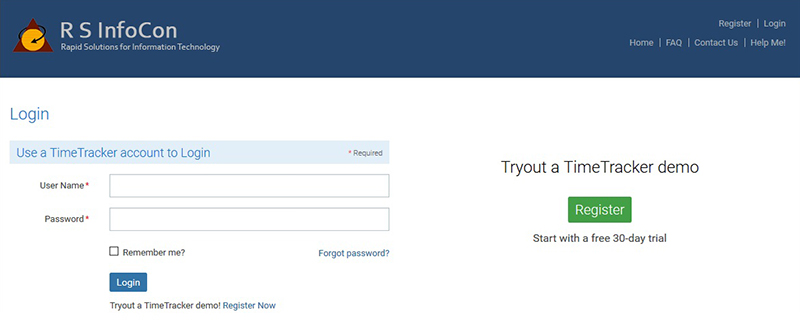
• Click on the Login link available on the header menu to navigate to the Login Page.
As a RSI TimeTracker user, your TimeTracker password will expire after 90 days, so you need to reset your TimeTracker password.
Following steps need to be followed to reset your password.
1. Go to the http://timetracker.rsinfocon.com/ and click on Login.
2. Enter User Name and Password.
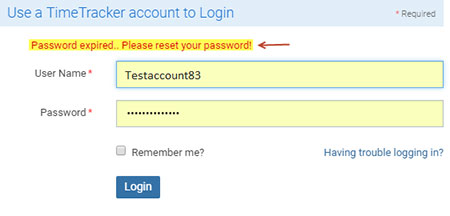
3. After getting "Password expired... Please reset your password" message.
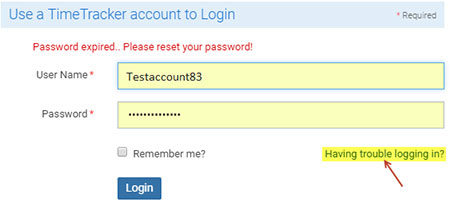
4. Click on “Having trouble logging in?” link.
5. Once you click on above link, you will see Reset Password page, Here you have to enter your personal email id which must be registered in http://timetracker.rsinfocon.com/
Note: If you aren't entering email id which is not registered in http://timetracker.rsinfocon.com/ then you won't be able to get reset password link on your entered email id.
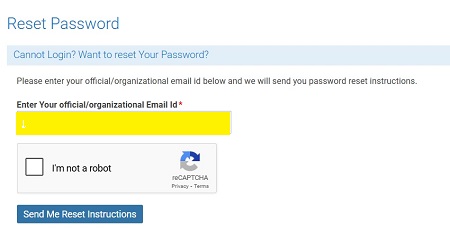
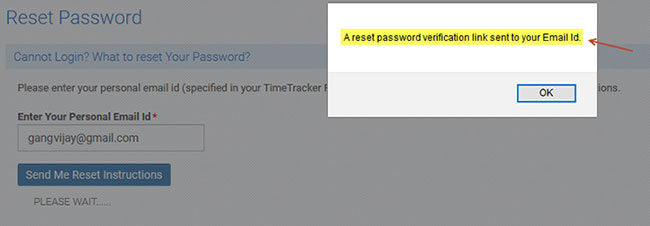
6. As you entered registered personal email id and click on “Send me Reset Instructions” button, a confirmation alert box will appear.
7. Click on Ok Button
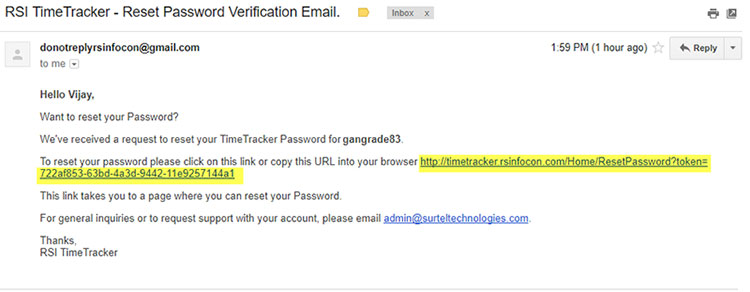
8. You will get RSI TimeTracker- Reset password verification email on your personal email id. Click on Reset link.
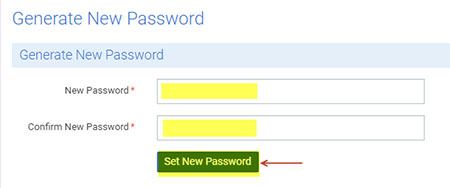
9. You will see “Generate New Password’ Page. You need to enter your new and confirm new password. And click on Set new password button.
You will see all notifications and options available to you on Dashboard. The Time Sheet submission reminders, Birthday and Work Anniversary greeting will also appear on the Dashboard.
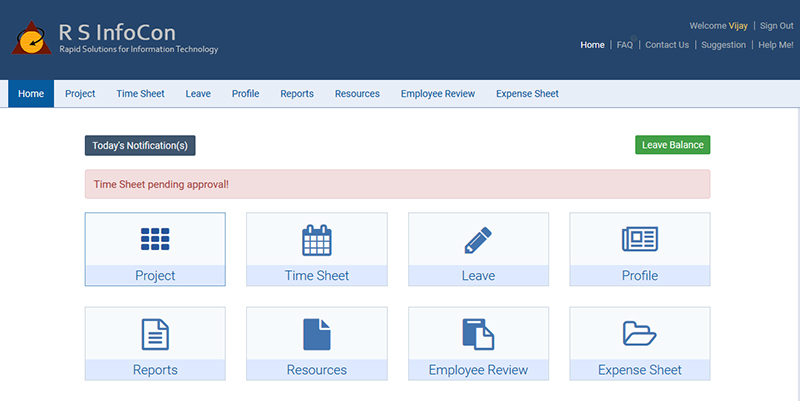
Leave Balance button: On clicking this button, you can see the leave balance hours in a modal popup window,
Note: If any logged in user has multiple roles assigned then they can select the desired role from the dropdown available on header menu to see the different dashboard. The default dashboard for any logged in user will be ‘Employee’.
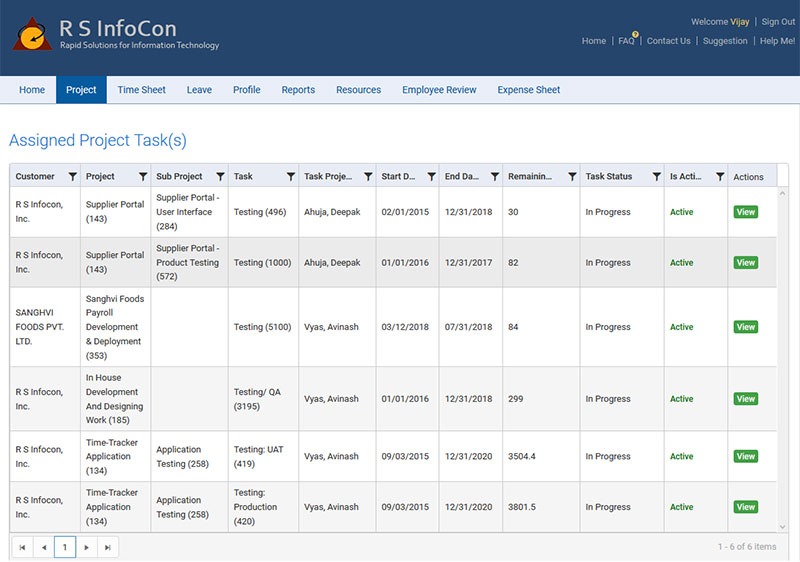
This option can be used to see the list of all Project(s), Sub Project(s) and their Task(s) assigned to you.
This option will be used to see the list of all Time Sheets filled by Employee with the Status.
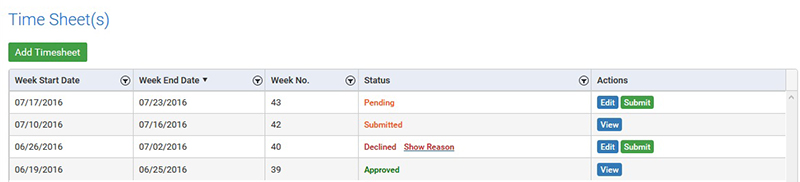
Edit - Employee will be able to Edit/Modify any unsubmitted Time Sheet.
Submit - To Submit the Time Sheet for approval.
View - To View any submitted Time Sheet. No editing/modification will be allowed to any submitted Time Sheet(s).
Employee can use this option to open a new page for entering Time Sheet task(s) and hour(s).
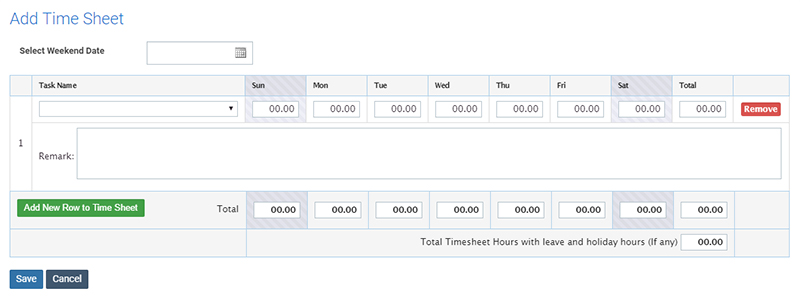
Process for adding Time Sheet -
- Select the end date for the week. Click on the ‘Calendar’ icon to chose the date.
- Select the Task Name from the dropdown against you want to enter hours. In this dropdown you will get the all task(s) assigned to you by your project manager.
- Use the ‘TAB’ key to move to the Day cell where you want to put hours and enter the desired hours as numeric values.
- If you want to enter new row to Time Sheet, click on ‘Add New Row to Time Sheet’ button. Repeat the step#3 to put hours of the task selected.
- Save the changes by clicking on ‘Save’ button.
- If you want to remove any row of the Time Sheet, click on ‘Remove’ button and click on ‘Save’ to update the Time Sheet record.
Note:
- Employee will be able to add only approved leave(s) in the Time Sheet.
- Employee will see only active task(s) in the dropdown, tasks should not be completed and its end date must be more than current date.
- The ‘end date’ selected while filling the Time Sheet will be the end date of the week (Saturday’s date).
- Employee will not be allowed to submit Time Sheet with less than 40 hours.
- Employee can fill and save partial time sheet on daily basis, but it need to be submitted before Monday afternoon (CST).
- Once submitted, employee will not be allowed to make any changes in the Time Sheet.
- Time sheet hours entry: 0.25 for 15 minutes, 0.50 for 30 minutes, 0.75 for 45 minutes and 1.00 for 1 hour. User will not be allowed to put time less than 15 minutes.
- If any holiday or leaves falls in the selected week dates, they will appear on the top of Time Sheet. There is no need to fill hours for holiday or leave in Time Sheet.
This option will be used for applying and tracking the status of applied leave(s).
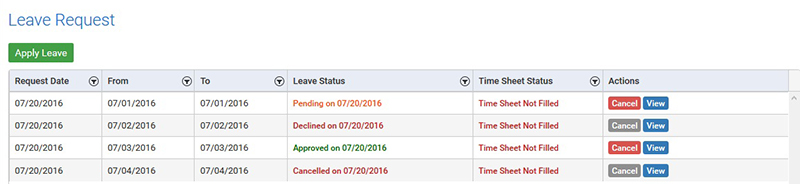
Note: Employee will not be able to apply leave(s) for the dates for which Time Sheet is already submitted and all approved leaves must be entered in Time Sheet before submitting it for approval.
-
Click on the ‘Apply Leave Request’ button, you will see the leave application page as per below -
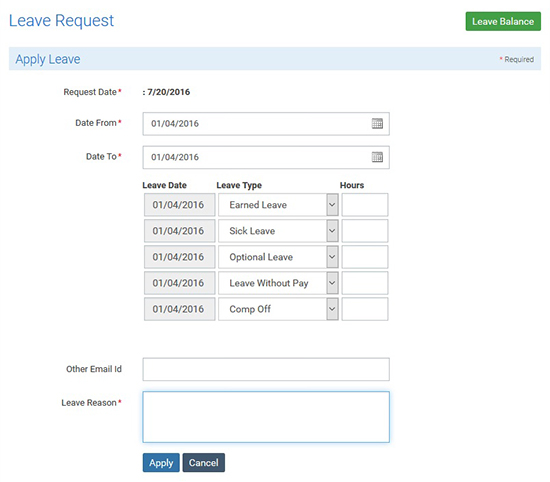
- Enter the desired ‘Date From’ and ‘Date To’.
- You will see the all dates between ‘Date From’ and ‘Date To’ in a list.
- Enter the hours against each date(s).
- You can enter email id(s) in ‘Other Email Id’ field, if you want to notify any additional team member other than your Project Manager and HR.
- Specify the reason for taking leave(s) and click on the ‘Apply’ button to apply for the leave.
This is a self service option for employee to update the most recent information in the system. Ex. if any employee’s contact information or residential address get changed he can update those information through ‘Profile’ option. In addition to Profile information, employee can view the information filled by HR and will also be able to Change his TimeTracker Login password.
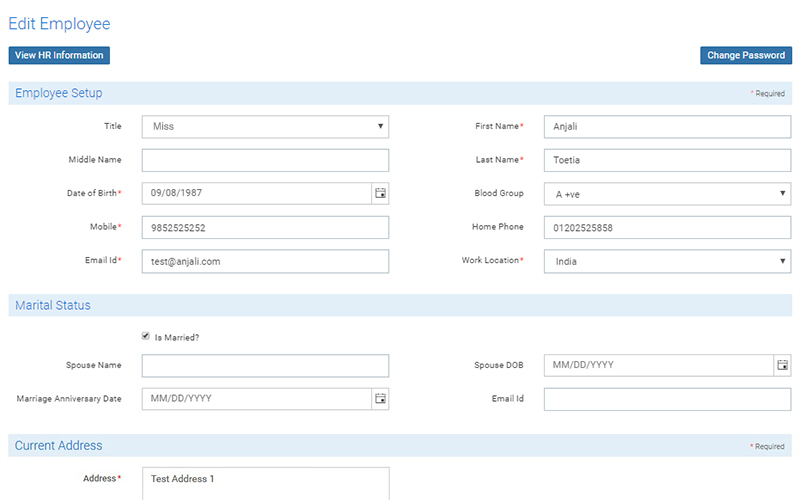
Note: All dates should be entered in mm/dd/yyyy (USA format).
Under this section, employee will see the list of reports available to them.
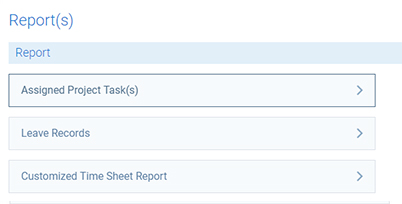
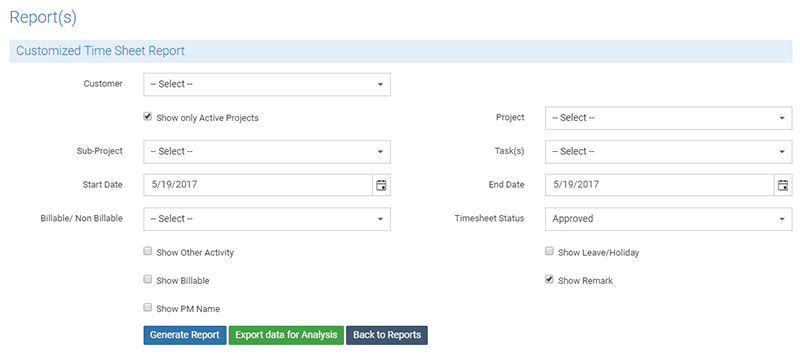
This report is for viewing the Time Sheet information as per the selected Project or Customer. This report will show all task(s) which is filled in the Time Sheet for the specified duration with the Time Sheet status and hours spent on that task.
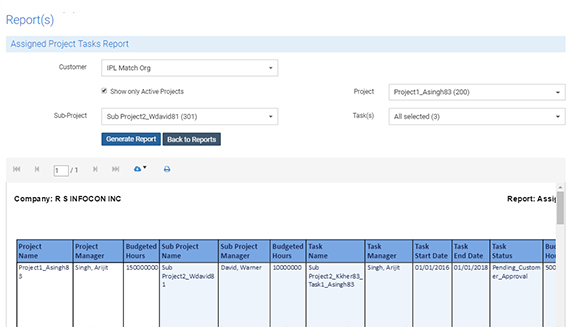
This report will show the task assigned to employee and its status and start/end date information. It will also provide information on Budgeted hours allocated for this task. In this report records can be filtered based on the different Project Status.
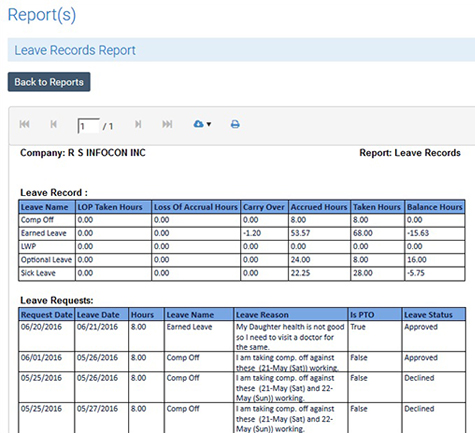
This report will show the updated leave balances for the employee and information for all requested leaves.
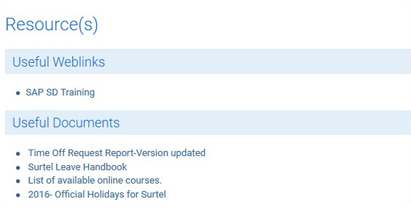
Under this option, employee can see the important website url(s) and document(s) shared with him by the organization. Employee can also download the document on his machine.
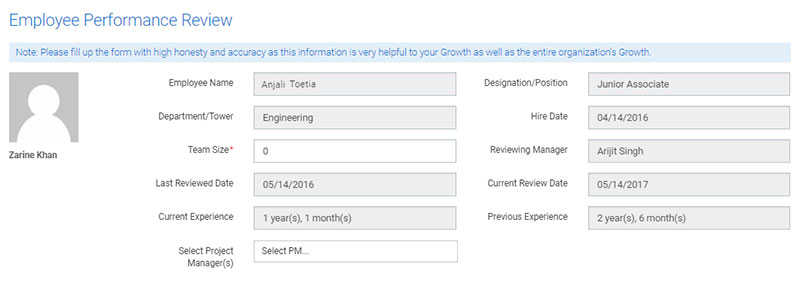
Under this section Employee can fill his/her Performance Review Form, after completing a year in the organization. Performance Review Form is process to appraisal of an Employee; It is a flow which is start with Employee and end with The Director.
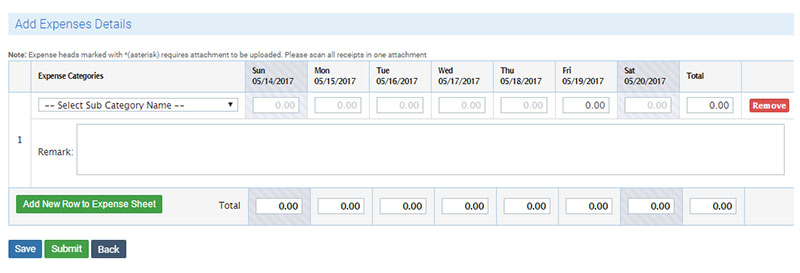
Under this section employee will add expenses and upload expense sheet (single pdf only) to their respective one or multiple project manager and HR.
How to fill up Expense Sheet?
How to fill up Expense Sheet?
- Enter the TimeTracker URL in the browser - http://timetracker.rsinfocon.com/ and you will see the home page of the TimeTracker.
- Click on the Login link available on the header menu to navigate to the Login Page and click on Login.
- Enter valid User Name & Password and click on Login Button
Dashboard
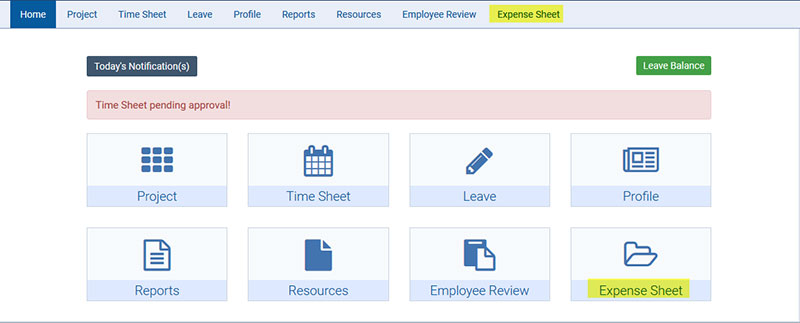
You will see all options available to you on Dashboard. Go to Expense Sheet header tab or Click on thumbnail icon image.
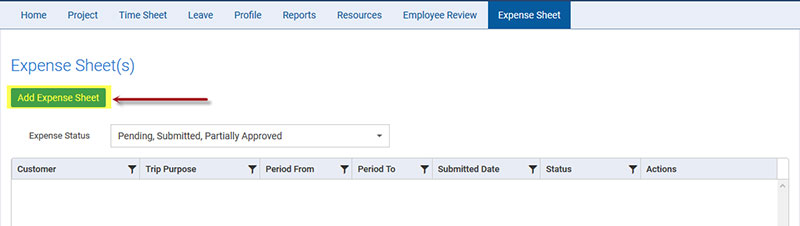
• Go to Expense Sheet and click on "Add Expense Sheet Button".
• Select “Period From & Period To” date from the available date pickers.
• And fill all related information in the header section.
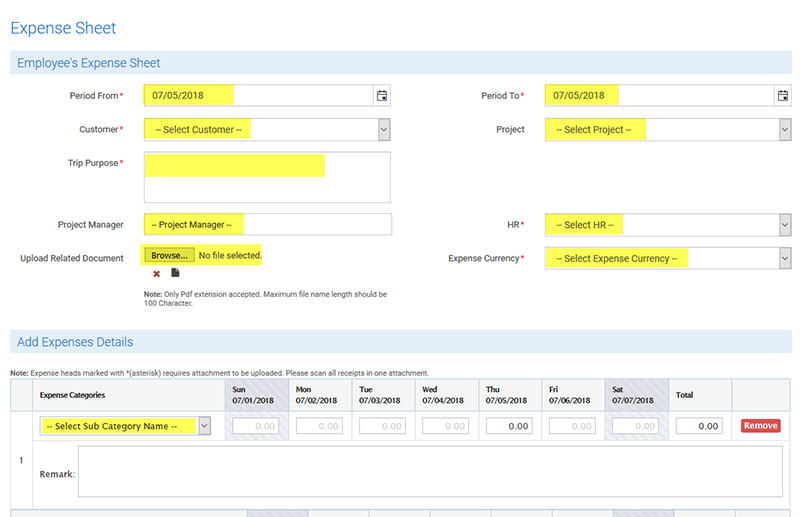
Note: Upload Related Document accepts single pdf file only.
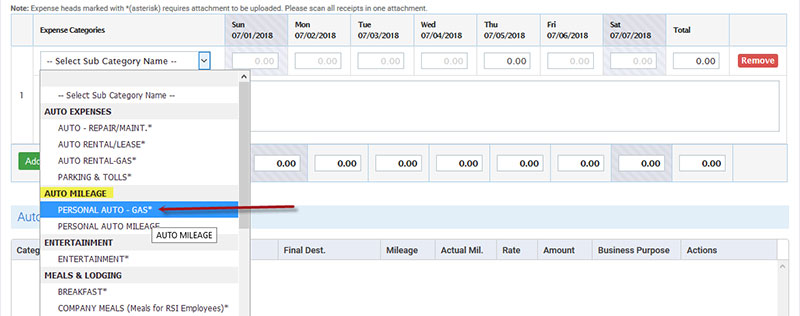
On selecting Auto Mileage Sub category, Auto Mileage Details popup will be open, here you need to select Travel date and fill all related information in the popup and click on save button.
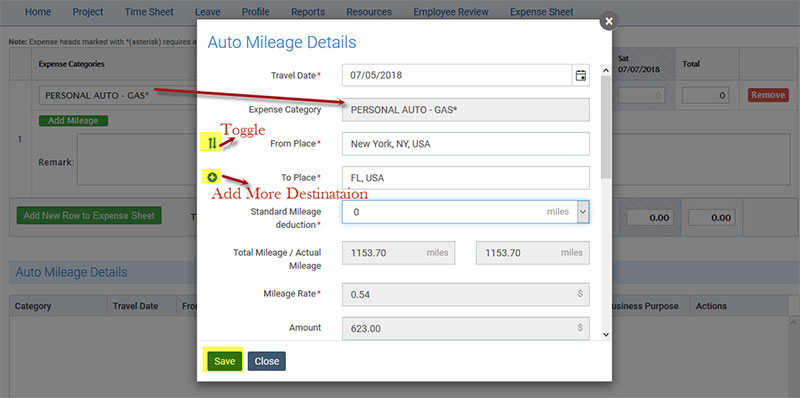
Note: Popup window will show you two different buttons.
- Toggle: this will be use for swapping from place and to place.
- Add More Destination : If you want to add more destination places you need to click on add more destination button.
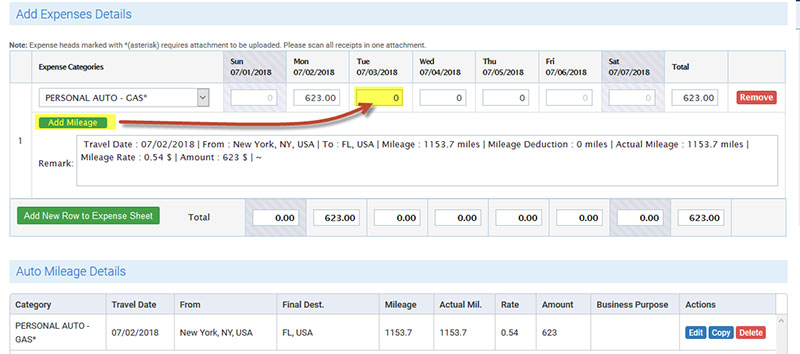
On entering mileage details for different expense date, you need to click on Add mileage button available below on category drop down list. Once you click on add mileage button a popup will open, here you need to select travel date and all related information and click on save button.
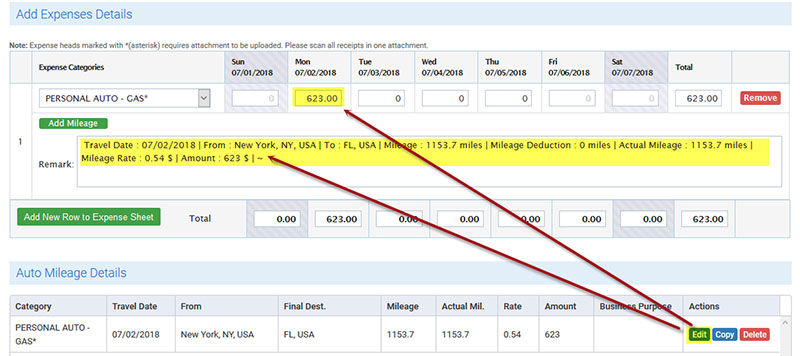
If you want update auto mileage details, go to auto mileage details section and click on edit button from the respective row which one do you want to change.
On selecting Expense sub category except auto expense, just enter amount in travel date cell and enter comment.
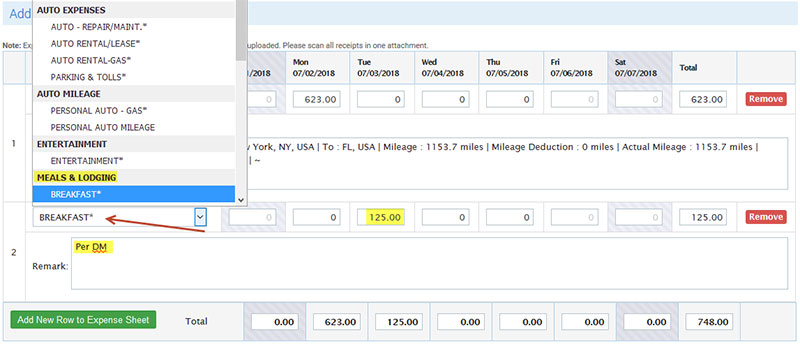
After entering all information click on save button and after confirmation you will click on submit button. once expense sheet is submitted, you can not make any change in submitted expense sheet.